
Survey Generator
The Survey Generator AI tool efficiently creates custom surveys for gathering feedback and insights. It offers a range of question types, automatic data analysis, and customizable branding. This intelligent solution streamlines the survey creation process, saving time and delivering valuable results for businesses and organizations.
How to Generate Surveys Using AI Tools?
With the Survey Generator AI Tool, you can effortlessly craft surveys tailored to your specific needs. Our intuitive interface allows you to seamlessly add and customize questions, select from a wide range of response options, and even incorporate branching logic to create a personalized survey experience for your respondents.
Our AI Tool goes beyond basic survey creation, offering advanced features such as automatic data analysis and reporting. The tool can analyze survey responses in real-time, providing you with valuable insights and trends to help you make informed decisions. Additionally, our reporting capabilities allow you to generate visually engaging and informative reports with just a few clicks.
The Survey Generator AI Tool is designed to be user-friendly, with a simple and intuitive interface that requires no technical expertise. Whether you are a seasoned survey creator or a novice, our AI Tool makes it easy for anyone to create professional-grade surveys in a matter of minutes.
Whether you need to gather customer feedback, conduct market research, or collect employee insights, our Survey Generator AI Tool is the perfect solution. Say goodbye to the hassle of manual survey creation and embrace the power of AI to streamline your surveying process. Try our Survey Generator AI Tool today and experience the difference.
STEP 1
Gain access to powerful AI tools simply by clicking on the AI Editor Tool option. Once you click it, you’ll be taken to the AI Editor Tool page, where you’ll be able to utilize a wide variety of AI tools to your advantage. So if you’re looking to make the most out of your AI experience, then clicking on the AI Editor Tool option in the main menu is your first step!
| 1) Dashboard Option |  |
STEP 2

STEP 3
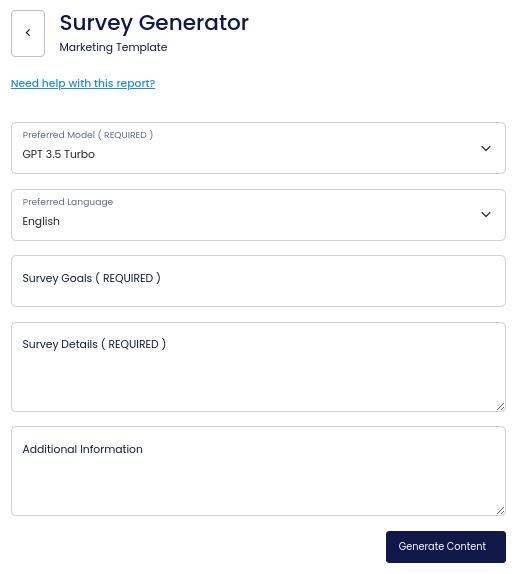
On the left side section, fill out the form with the input content that you would like to run as input.
If there are any other form inputs, then fill them in (this will only be applicable to certain reports; if this is not available, skip to Step 4).
STEP 4
Generate your content by clicking on the Generate Content button.
STEP 5
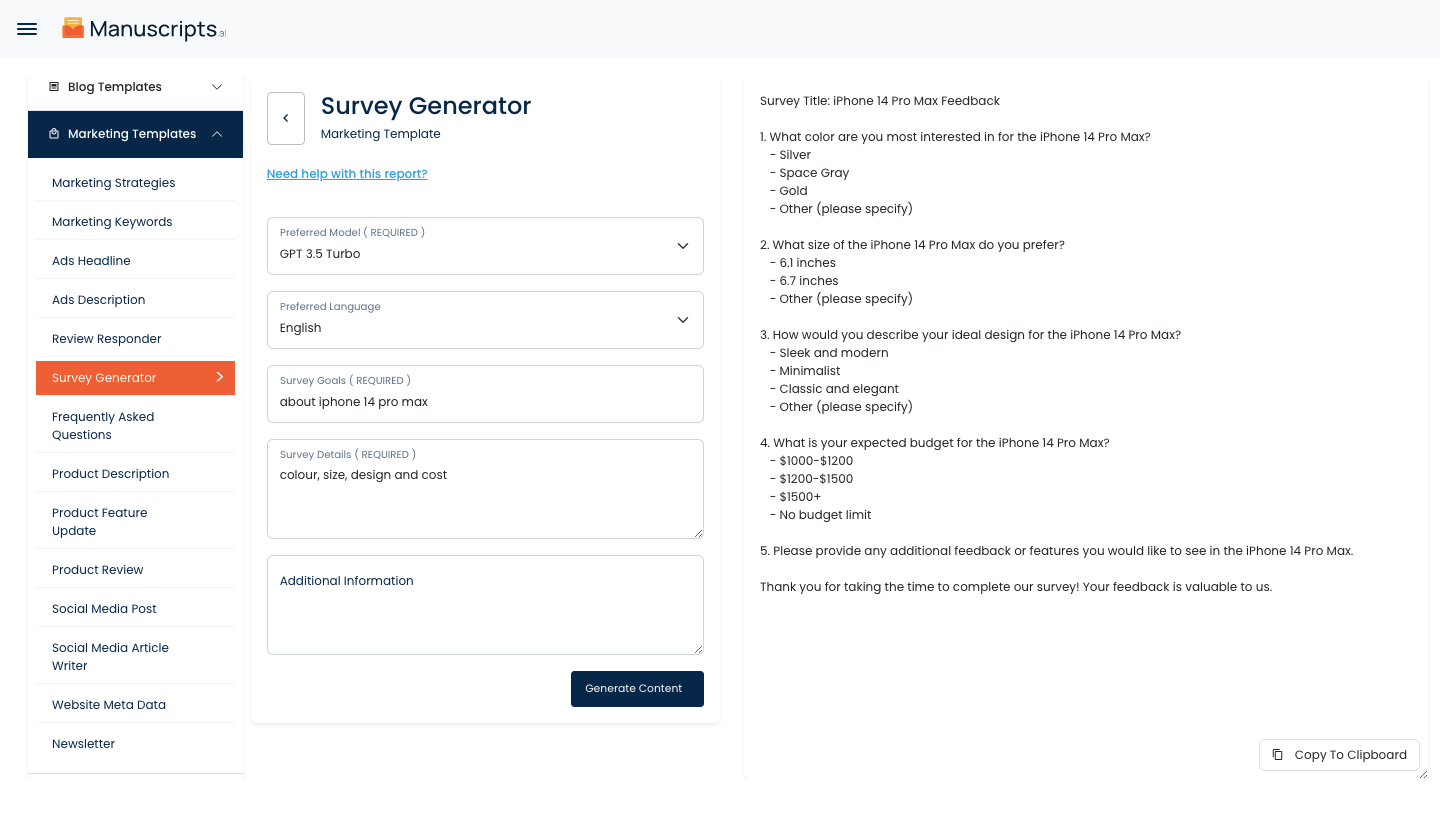
Your output content will appear on the right side of the section after a short while.
STEP 6
Copy your output content for further use by clicking the Copy to Clipboard button.

Note: You can also access your output content from the History section in the future.