
Social Media Post
Introducing our new AI-powered Social Media Post tool, designed to help you create engaging and impactful content for all your social media platforms. With our innovative technology, you can now easily craft posts that resonate with your audience and drive results.
How to Write a Social Media Post Using AI Tools?
Introducing our latest AI-powered tool- the “Social Media Post” feature! In today’s digital world, social media has become an essential platform for individuals and businesses to connect, engage, and grow their online presence. With our new AI feature, creating engaging and impactful social media posts has never been easier.
Our AI algorithms analyze trending topics, audience preferences, and industry insights to suggest relevant and engaging content ideas for your social media posts. Whether you’re a small business, influencer, or a large corporation, our AI feature can help you stay ahead of the game by providing you with fresh and creative ideas for your social media content.
Not only does our AI feature help in generating content ideas, but it also assists in creating visually appealing posts. Our advanced image recognition technology recommends high-quality images that are relevant to your post, ensuring that your content stands out in the cluttered world of social media.
Additionally, our AI feature helps in optimizing your social media posts for maximum reach and engagement. By analyzing past performance and user behavior, our AI suggests the best times to post, the most effective hashtags to use, and the ideal post length for each platform.
STEP 1
Gain access to powerful AI tools simply by clicking on the AI Editor Tool option. Once you click it, you’ll be taken to the AI Editor Tool page, where you’ll be able to utilize a wide variety of AI tools to your advantage. So if you’re looking to make the most out of your AI experience, then clicking on the AI Editor Tool option in the main menu is your first step!
| 1) Dashboard Option |  |
STEP 2
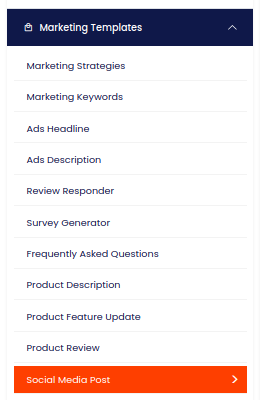
STEP 3
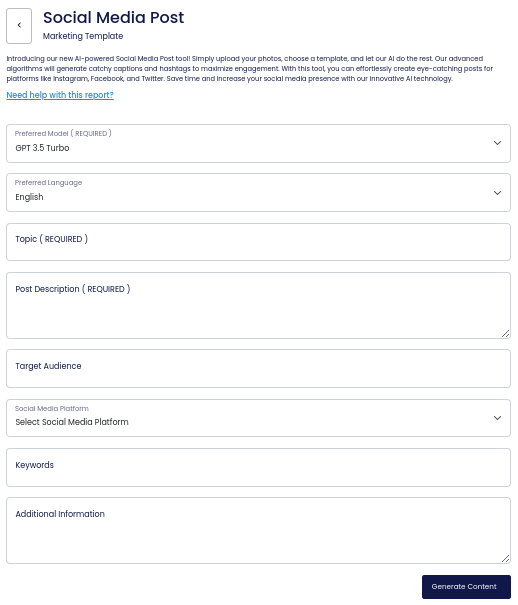
On the left side section, fill out the form with the input content that you would like to run as input.
If there are any other form inputs, then fill them in (this will only be applicable to certain reports; if this is not available, skip to Step 4).
STEP 4
Generate your content by clicking on the Generate Content button.
STEP 5
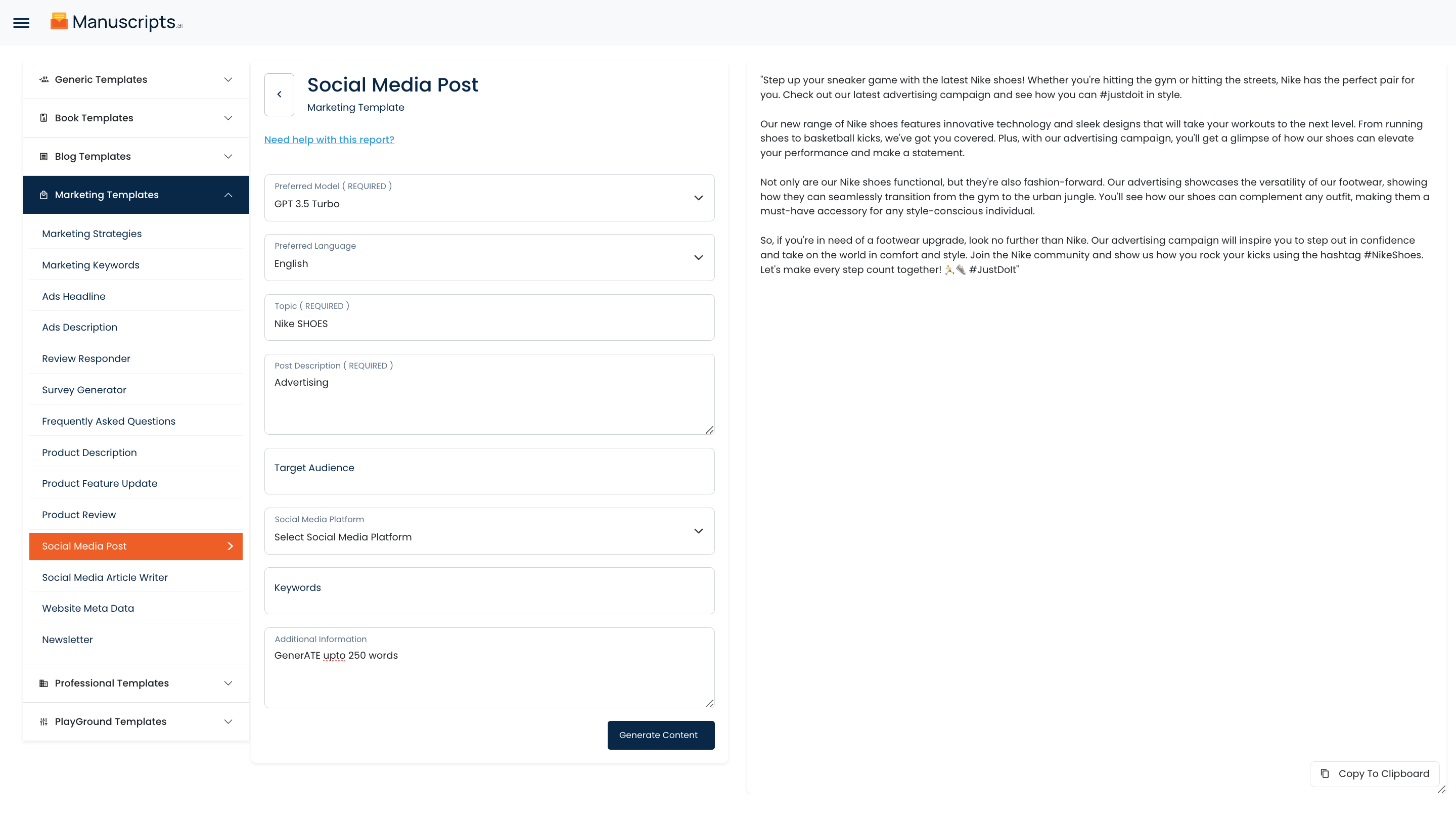
Your output content will appear on the right side of the section after a short while.
STEP 6
Copy your output content for further use by clicking the Copy to Clipboard button.

Note: You can also access your output content from the History section in the future.