
Review Responder
Introducing our review responder AI Tool – a powerful solution for automatically managing and responding to customer reviews. This intelligent tool analyzes feedback across various platforms and generates personalized responses, saving time and maintaining positive interactions. Elevate your customer service game with our review responder AI Tool.
How to Respond to a Review Using AI Tools?
Introducing our new AI review responder tool, a powerful and intelligent solution designed to streamline and automate your review management process. Our AI review responder leverages advanced natural language processing and machine learning algorithms to quickly and accurately analyze and interpret customer reviews across various platforms.
With the ability to understand the context and sentiment of customer feedback, our AI review responder generates personalized and appropriate responses to engage and address customer concerns. This not only saves your team valuable time and resources but also ensures that every customer receives a timely and thoughtful response.
Our AI review responder is fully customizable, allowing you to tailor responses based on your brand voice and customer service guidelines. It can also provide valuable insights and analytics on trends and patterns within customer feedback, helping you make data-driven decisions to improve your products and services.
Say goodbye to manual review management and hello to a more efficient and effective approach with our AI review responder. Let our intelligent technology take the reins and elevate your customer satisfaction and online reputation.
STEP 1
Gain access to powerful AI tools simply by clicking on the AI Editor Tool option. Once you click it, you’ll be taken to the AI Editor Tool page, where you’ll be able to utilize a wide variety of AI tools to your advantage. So if you’re looking to make the most out of your AI experience, then clicking on the AI Editor Tool option in the main menu is your first step!
| 1) Dashboard Option |  |
STEP 2
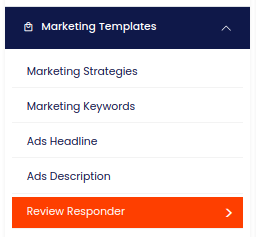
STEP 3
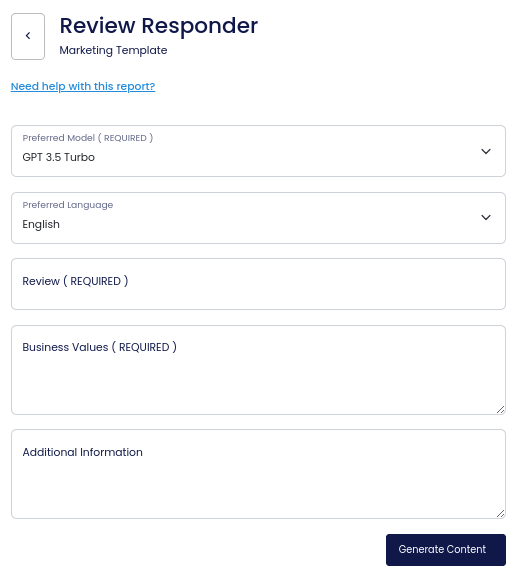
On the left side section, fill out the form with the input content that you would like to run as input.
If there are any other form inputs, then fill them in (this will only be applicable to certain reports; if this is not available, skip to Step 4).
STEP 4
Generate your content by clicking on the Generate Content button.
STEP 5
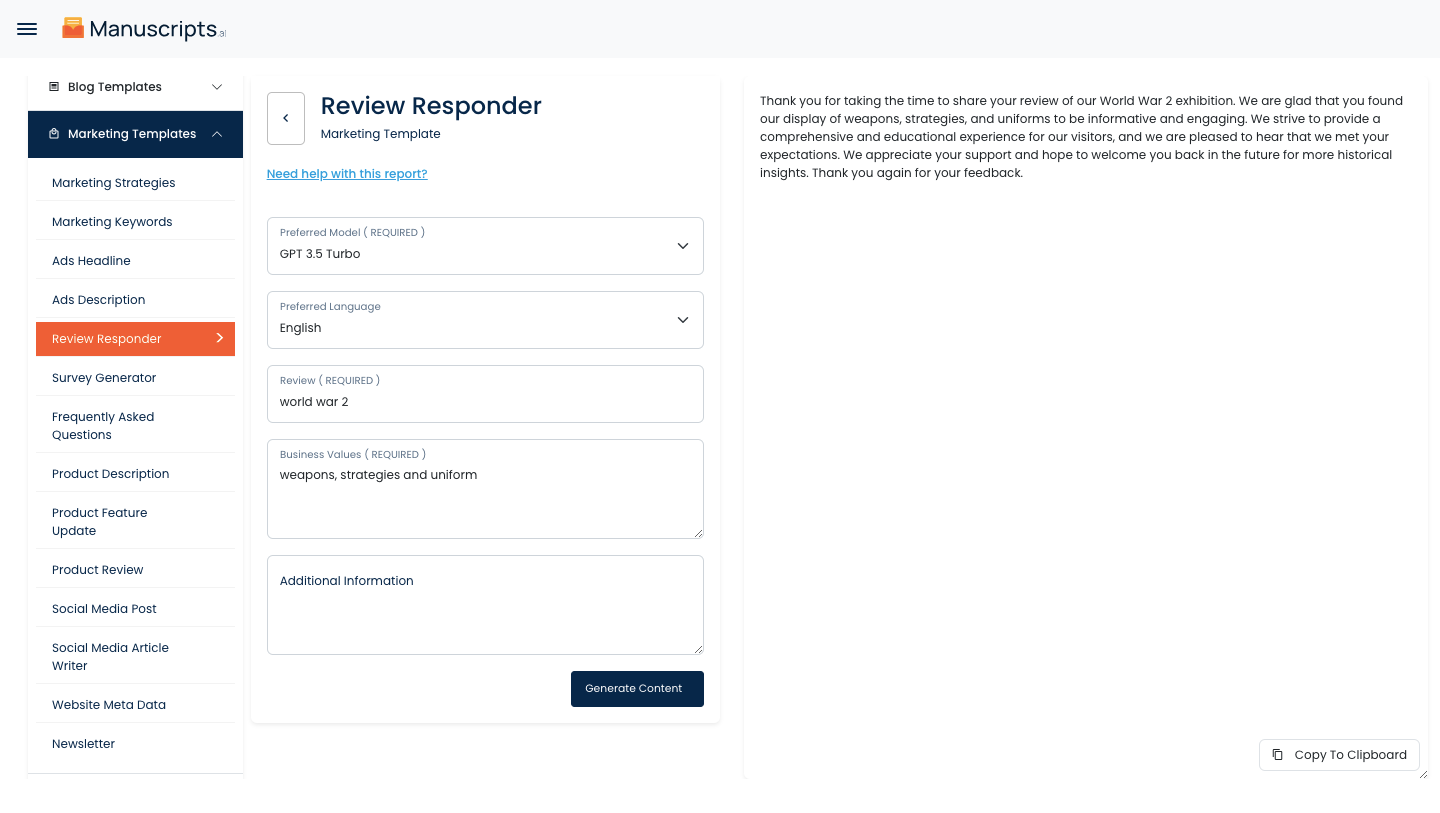
Your output content will appear on the right side of the section after a short while.
STEP 6
Copy your output content for further use by clicking the Copy to Clipboard button.
Note: You can also access your output content from the History section in the future.