
AI Marketing Keywords Tool: Generate High-Impact Keywords
Introducing our Marketing Keywords AI Tool, a powerful and innovative solution designed to revolutionize the way businesses approach keyword research and optimization. With our advanced AI technology, you can say goodbye to time-consuming manual keyword research and hello to a more efficient and effective marketing strategy.
How to Generate Marketing Keywords Using AI Tools?
To generate marketing keywords using AI tools, follow these steps: First, gain access to the AI Editor Tool by clicking the option in the main menu. Next, expand your story on the AI Editor Tools page to develop your content. Then, fill out the form on the left side with your input content. If applicable, fill in any other form inputs. Finally, click the 'Generate Content' button, and your output will appear on the right side, ready to be copied. The Marketing Keywords AI tool identifies high-performing keywords relevant to your target audience, improving SEO, PPC, and content marketing. It also helps identify new keyword opportunities and offers insights into performance and trends, enabling data-driven decisions for your marketing strategy.
STEP 1
Gain access to powerful AI tools simply by clicking on the AI Editor Tool option. Once you click it, you’ll be taken to the AI Editor Tool page, where you’ll be able to utilize a wide variety of AI tools to your advantage. So if you’re looking to make the most out of your AI experience, then clicking on the AI Editor Tool option in the main menu is your first step!
| 1) Dashboard Option |  |
STEP 2
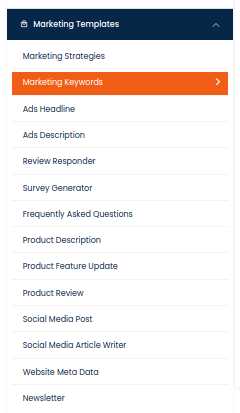
In order to improve your AI experiences, one of the features available on the AI Editor Tools page is the option to expand your story. Upon selection of this feature, the AI Editor Tools page will provide you with various options to develop your story.
STEP 3
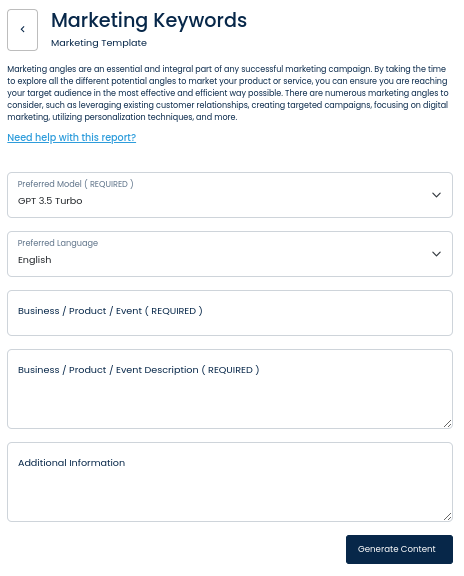
On the left side section, fill out the form with the input content that you would like to run as input.
If there are any other form inputs, then fill them in (this will only be applicable to certain reports; if this is not available, skip to Step 4).
STEP 4
Generate your content by clicking on the Generate Content button.
STEP 5
Your output content will appear on the right side of the section after a short while.

STEP 6
Copy your output content for further use by clicking the Copy to Clipboard button.

Note: You can also access your output content from the History section in the future.