How to Use Our AI Google Ads Headline Generator
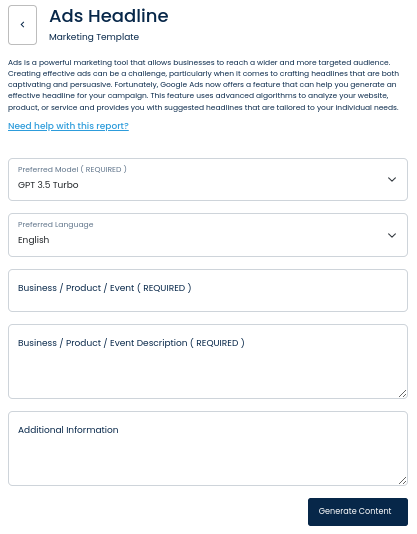
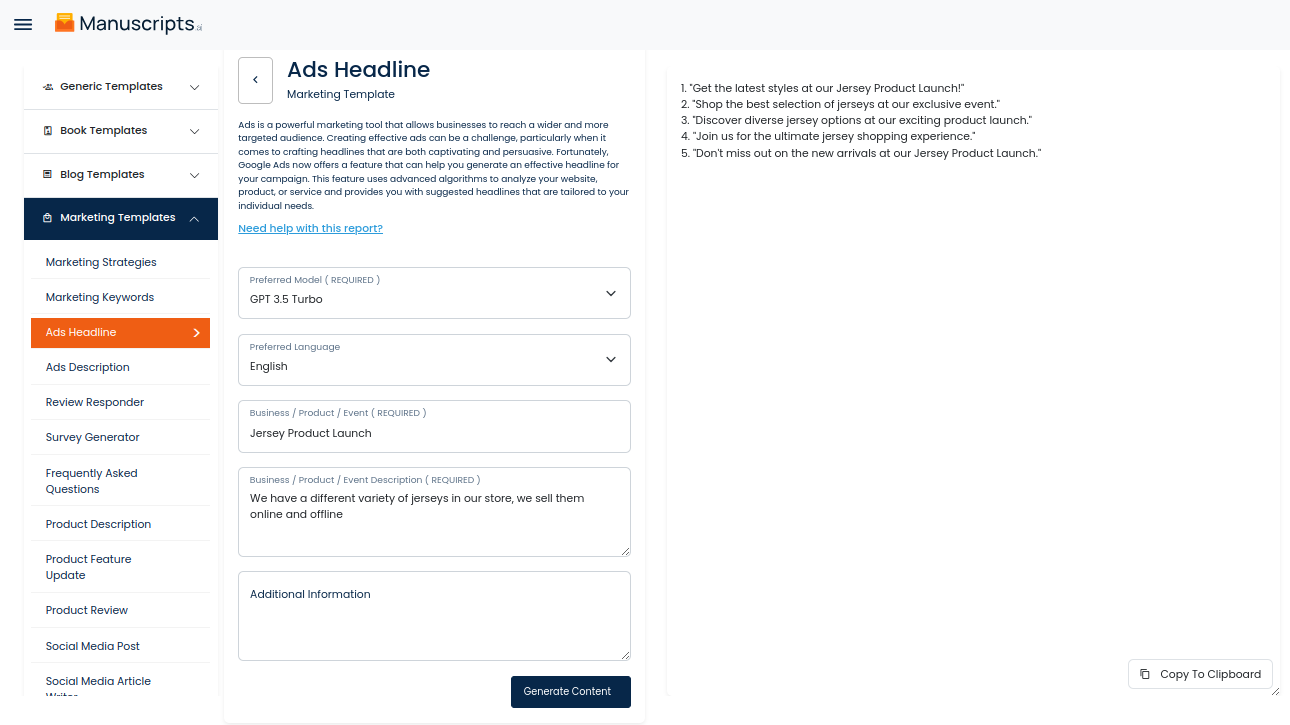
Introducing AI-powered Google Ads Headline Generator, an innovative new tool that helps businesses create powerful ad headlines with ease. AI-powered Google Ads Headline Generator leverages natural language processing to process the input topic and content description, and then generate effective Google Ads Headlines to capture the attention of potential customers.
How To Generate Ads Headline Using AI Tools ?
The AI-powered Google Ads Headline Generator guides users in creating headline that optimizes their overall marketing campaign. It evaluates the input content and suggests relevant keywords to help craft an attention-grabbing headline that accurately represents the business or topic of focus. It also suggests alternative headlines based on the input content, offering multiple options to choose from.
The AI-powered Google Ads Headline Generator can save users time and money while also increasing conversions. With a few clicks the generator provides a selection of powerful, creative Google Ads Headlines tailored to each business’ individual needs. The effectiveness of these headlines can be further optimized and fine-tuned based on user input and real-time performance analysis.
This AI-powered Google Ads Headline Generator is the perfect solution for businesses who want to create effective and high-converting Google Ads Headlines quickly and easily. Don’t waste any more time crafting ineffective ad headlines, let the generator do the work for you!
| 1) Dashboard Option |  |
| 2) Dashboard Sidebar Option |  |
| 3) Book Editor Sidebar Option |  |
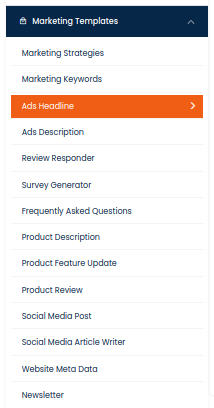
If there are any other form inputs, then fill them in (this will only be applicable to certain reports; if this is not available, skip to Step 4).