
Explain Any Topic to a Child with AI
This AI tool is designed to make reading and comprehension more accessible to children at all levels. The tool will automatically convert different text formats like books, essays or articles into language that is easily understood and interpreted by children.
How To Run Explain To A Child Report Using AI Tools ?
To run an 'Explain To A Child' report using AI Tools, you will leverage specialized algorithms that anticipate understanding roadblocks and suggest tactics like explanation words and background context. The AI tool also enhances content with digital arrows, tables, and interactive elements, linking to articles, timelines, or videos for better comprehension. Unlike other translation tools, it focuses on readability and comprehension, tailoring output to the child's reading level and adjusting as they mature. Finally, an intuitive dashboard allows users to review the AI's output before sharing it with children, ensuring appropriateness.
How do you begin using the AI Editor Tool?
To begin using the AI Editor Tool, simply click on the 'AI Editor Tool' option in the main menu. This action grants you access to a wide variety of powerful AI tools on the dedicated AI Editor Tool page, allowing you to maximize your AI experience.
| 1) Dashboard Option |  |
| 2) Dashboard Sidebar Option |  |
| 3) Book Editor Sidebar Option |  |
What is the next step to expand your story using AI Editor Tools?
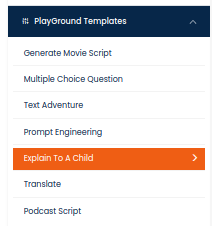
The next step to expand your story using AI Editor Tools is to select the 'expand your story' feature available on the AI Editor Tools page. Upon selection, the page will present you with various options to develop your narrative further, enhancing your AI experiences.
How do you input content for your AI report?
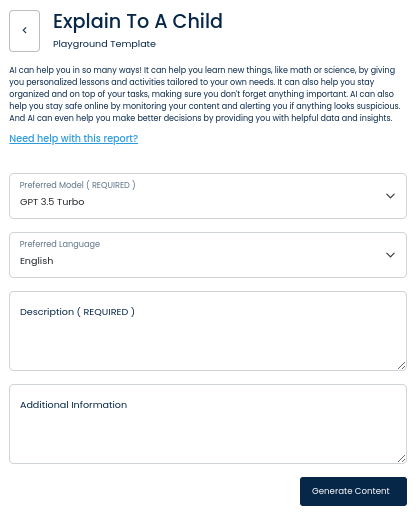
On the left side section, fill out the form with the input content that you would like to run as input.
If there are any other form inputs, then fill them in (this will only be applicable to certain reports; if this is not available, skip to Step 4).
How do you generate content after inputting information?
Generate your content by clicking on the Generate Content button.
Where will your generated content appear?
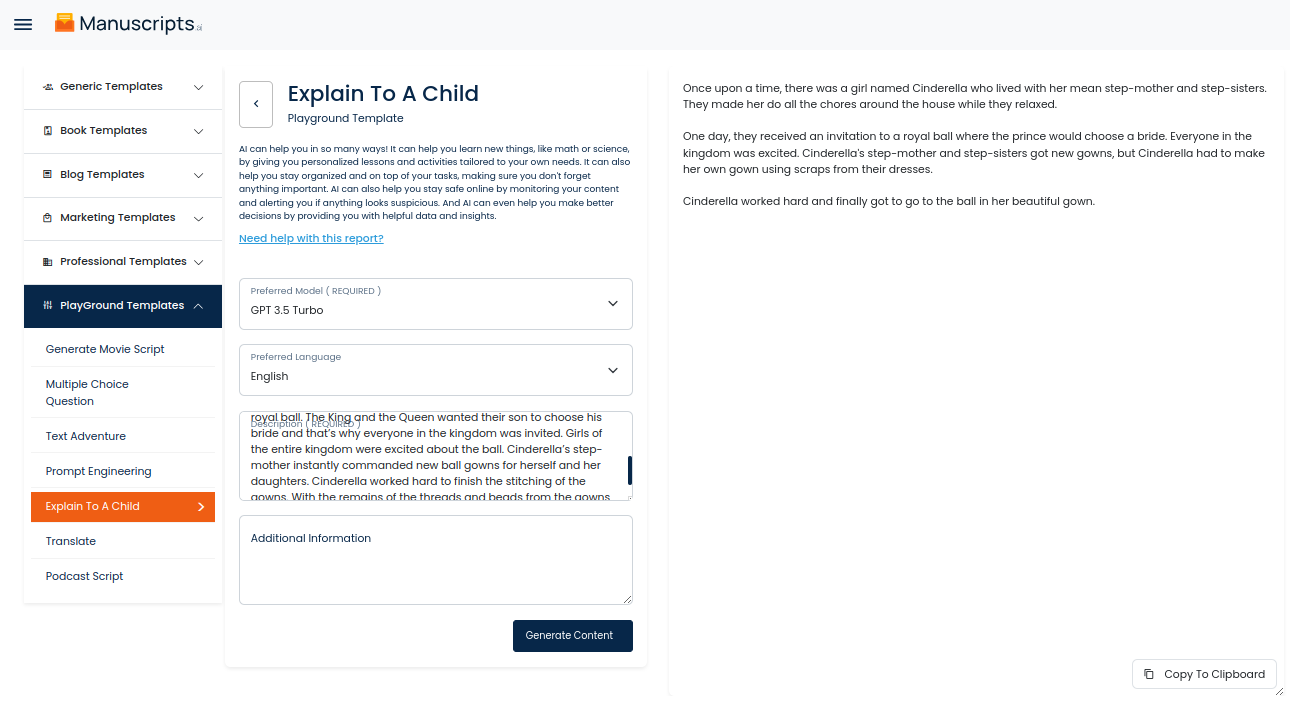
Your output content will appear on the right side of the section after a short while.
How do you copy your generated output content?
Copy your output content for further use by clicking the Copy to Clipboard button.
Note: You can also access your output content from the History section in the future.