
Translate
Introducing the revolutionary Translate AI tool – an advanced solution for instant and accurate translation of text, documents, and conversations. Powered by cutting-edge artificial intelligence technology, Translate AI offers seamless and precise translation across multiple languages, making it an indispensable tool for individuals and businesses alike.
How to Translate Using AI Tools?
Introducing our latest AI tool: Translate. This cutting-edge feature is designed to bridge communication gaps by providing accurate and seamless language translation. Whether you are traveling abroad, conducting business with international partners, or simply trying to understand a foreign language, Translate is your ultimate language companion.
Equipped with state-of-the-art machine learning algorithms, Translate has been trained on a vast array of linguistic data to ensure high precision and reliability. Our AI tool can effortlessly translate text, voice, and even images in real-time, making it the perfect solution for overcoming language barriers in any situation.
With its user-friendly interface, Translate offers a smooth and intuitive experience, allowing users to easily input text or upload images for instant translation. Our AI tool supports multiple languages and dialects, empowering users to communicate effectively with people from different linguistic backgrounds.
Translate also boasts advanced features such as voice recognition and natural language processing, enabling users to have natural conversations in different languages without the need for manual input. This groundbreaking technology not only saves time and effort but also promotes cross-cultural understanding and collaboration.
STEP 1
Gain access to powerful AI tools simply by clicking on the AI Editor Tool option. Once you click it, you’ll be taken to the AI Editor Tool page, where you’ll be able to utilize a wide variety of AI tools to your advantage. So if you’re looking to make the most out of your AI experience, then clicking on the AI Editor Tool option in the main menu is your first step!
| 1) Dashboard Option |  |
STEP 2
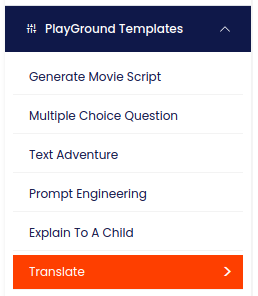
STEP 3
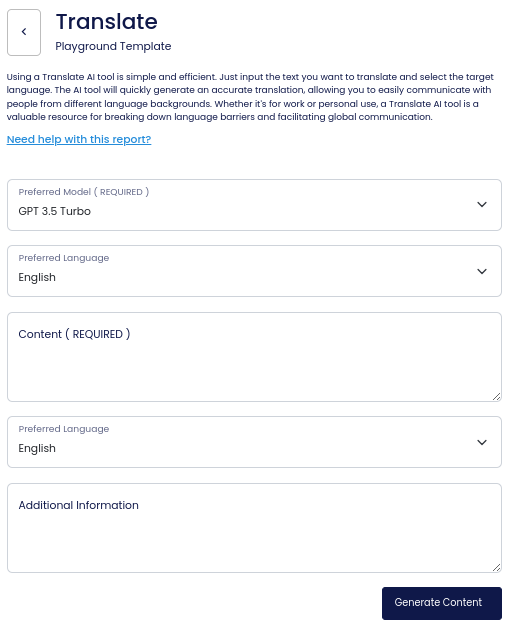
On the left side section, fill out the form with the input content that you would like to run as input.
If there are any other form inputs, then fill them in (this will only be applicable to certain reports; if this is not available, skip to Step 4).
STEP 4
Generate your content by clicking on the Generate Content button.
STEP 5
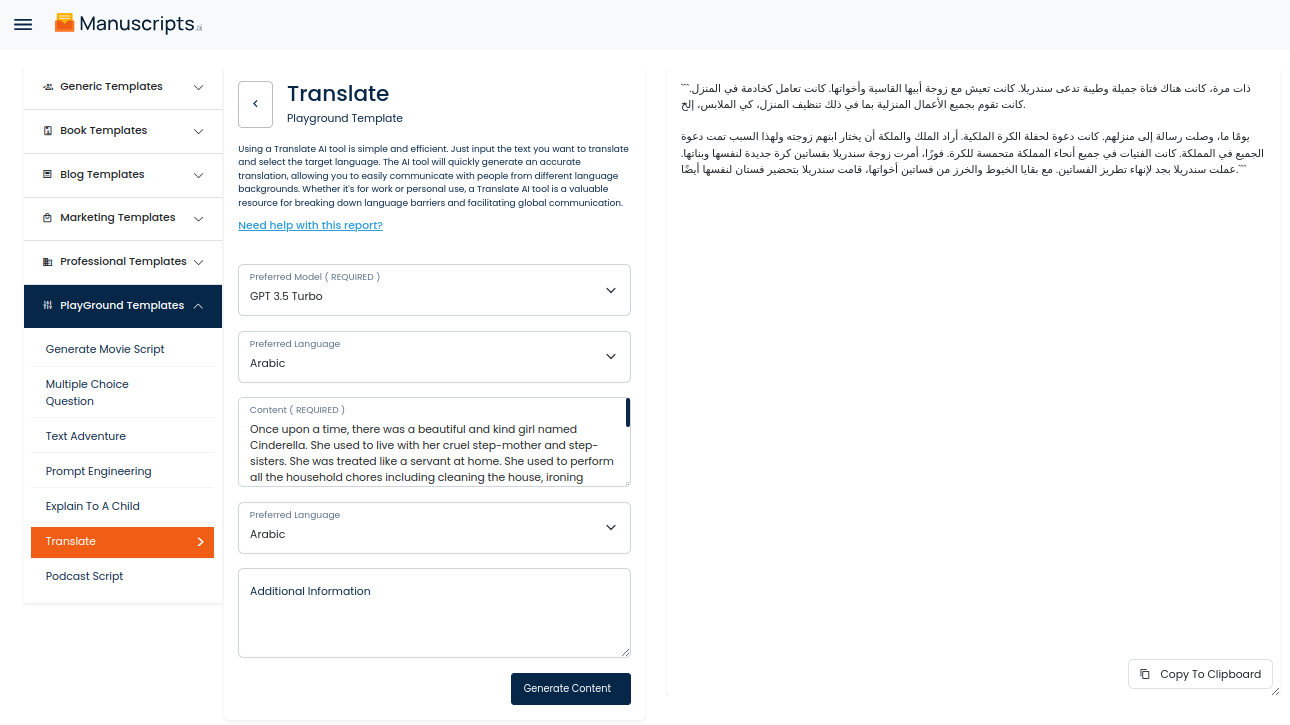
Your output content will appear on the right side of the section after a short while.
STEP 6
Copy your output content for further use by clicking the Copy to Clipboard button.

Note: You can also access your output content from the History section in the future.