
Business Strategy
Introducing our powerful AI tool designed to revolutionize business strategy. Our AI feature utilizes advanced machine learning algorithms to analyze market trends, consumer behavior, and competitor strategies, providing businesses with invaluable insights to inform their strategic decisions.
How to Generate Business Strategy Using AI Tools?
With our AI tool, businesses can gain a deeper understanding of their target audience, identify emerging market trends, and anticipate potential challenges in the competitive landscape. The AI feature also offers predictive analytics, enabling companies to forecast future market conditions and make informed decisions to stay ahead of the curve.
In addition, our AI tool can generate personalized recommendations for business strategies based on the specific needs and goals of each individual company. This ensures that businesses can tailor their strategies to optimize their competitive advantage and drive sustainable growth.
Furthermore, the AI feature is equipped with real-time monitoring capabilities, allowing businesses to continuously assess the effectiveness of their strategies and make adjustments as needed. This ensures that companies can adapt to evolving market conditions and maintain a strategic edge.
Ultimately, our AI tool empowers businesses to make smarter, data-driven decisions that drive innovation, improve operational efficiency, and maximize profitability. With its advanced capabilities and customizable features, our AI tool is a game-changing solution for businesses looking to elevate their strategic planning and achieve long-term success in today’s competitive business landscape.
STEP 1
Gain access to powerful AI tools simply by clicking on the AI Editor Tool option. Once you click it, you’ll be taken to the AI Editor Tool page, where you’ll be able to utilize a wide variety of AI tools to your advantage. So if you’re looking to make the most out of your AI experience, then clicking on the AI Editor Tool option in the main menu is your first step!
| 1) Dashboard Option |  |
STEP 2
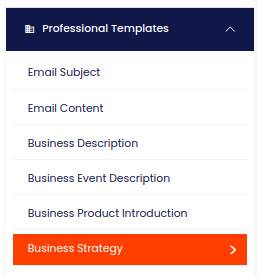
STEP 3
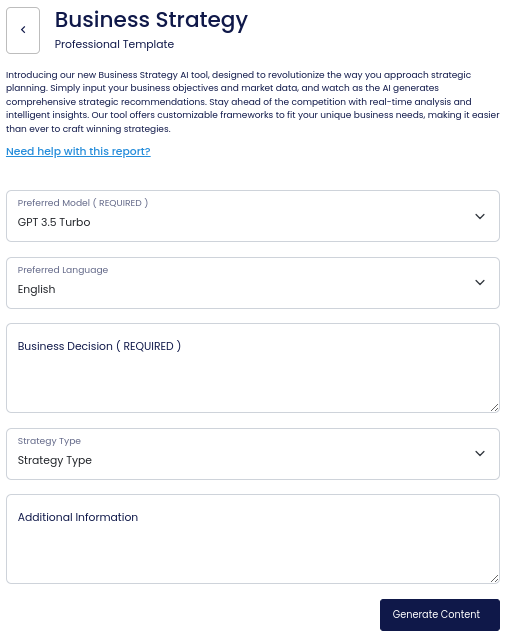
On the left side section, fill out the form with the input content that you would like to run as input.
If there are any other form inputs, then fill them in (this will only be applicable to certain reports; if this is not available, skip to Step 4).
STEP 4
Generate your content by clicking on the Generate Content button.
STEP 5
Your output content will appear on the right side of the section after a short while.

STEP 6
Copy your output content for further use by clicking the Copy to Clipboard button.

Note: You can also access your output content from the History section in the future.